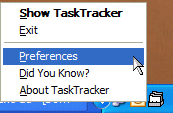
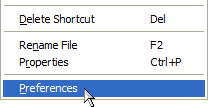
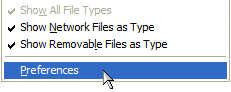
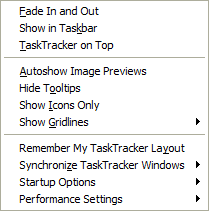
You can get to the Preferences menu from the TaskTracker system tray icon's context (right-click) menu or either TaskTracker list's context (right-click) menu.
|
|
|
You can choose from the following options:
TaskTracker on Top
Keeps the TaskTracker windows on top of other windows. You can still hide or minimize them.
Hide Tooltips
Hide or show most tooltips.
Show Icons Only
Show icons only in the File Type window.
Show Gridlines
File Type List
File Name List
Show or hide gridlines in either TaskTracker window.
Remember My TaskTracker Layout
Synchronize TaskTracker Windows
Single-Click Open/Close
Autohide on File Open
Default Focus
Glue Together
File Types of Left
File Types on Right
No Splash Screen
Prevents the splash screen on startup.
Check for Updates
Automatically checks for a new version of TaskTracker on startup.
Start with Windows
Minimized
Normal
No Caching
Always Validate Files
This option increases the accuracy of file data by checking for files and their dates whenever switching file types. However, it increases the time required to build long file lists.
Synchronization
On First Showing
On Startup
Never